

Five New Templates, and Every Store Can Use Them
Until now, every FreshStore was built on the same template. Themes changed the colours, the fonts and the order of the homepage, but a price drop store, a buying guide site and a houseplant shop all had the same pages underneath.
FreshStore now has six templates, each built for a different kind of store, and every store can use any of them.
The short version
- Five new templates: Emporium, Bounty, Compass, Podium and Vista, beside Crystal. All six are open to every store.
- Preview your own store in any template before you switch.
- A readiness check tells you, with your own numbers, how well your store suits each one.
- A switch deletes nothing, and you can switch back any time.
- Crystal gets an optional new look called Prism, and every store gets new options for phones, logos, buy buttons and prices.
Six templates, six kinds of store
A template is the base your whole store is built on: the homepage, the product pages, the category pages, your articles, and the way products and prices are shown. You find them at Design > Templates in your store admin. Each one is running on a real store, so you can open it and click around.
Crystal: The All-Rounder. The template every store has run on until now. It suits any niche and is a safe start while you build. See it live: https://store.welovesharks.org/ (in the new Prism look)
Emporium: The Department Store. Your homepage opens on a directory of your numbered departments instead of a banner. Prices sit on shelf tickets, long lists open as a table, and search sits in the header. Best for big catalogues in clear departments: appliances, kitchen, gadgets, things people compare. See it live: https://drinkfridges.com/

Bounty: The Offer Feed. A price feed sorted by how much is off. Products show as rows, with the saving, the old price and the retailer on one line. Best for niches that discount often, such as toys, collectibles and electronics. See it live: https://funko.rocks/

Compass: The Buying Guide. Your guides lead. Each guide opens with a summary of its picks, product pages lead with the facts and the price, and everything sits on a paper page set in a newspaper style font. Best for stores with 8 or more guides and a clear angle. See it live: https://playstation.goshopgaming.com/

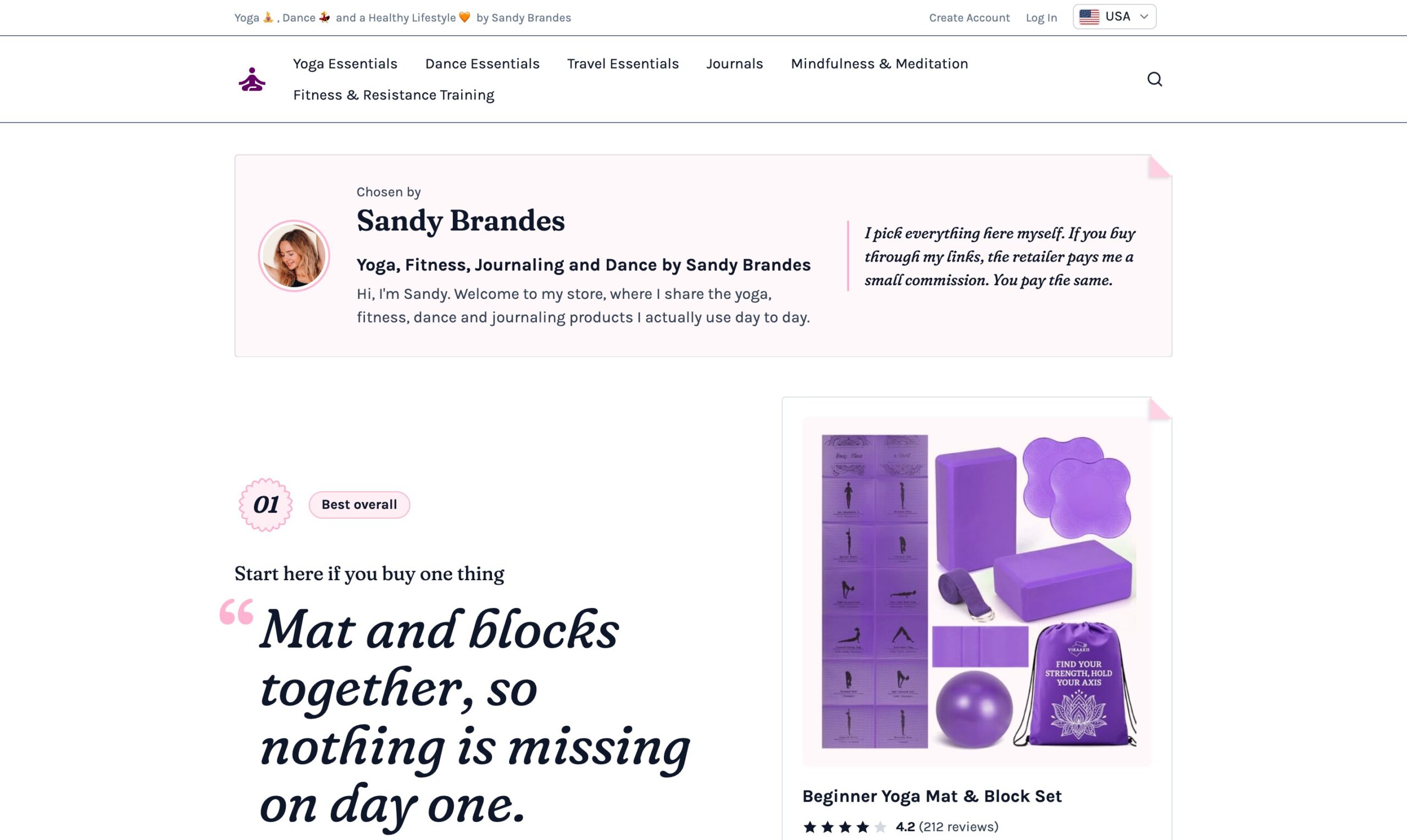
Podium: The Curator. Ranked, badged picks that carry your own comments, with your name and face at the top of the homepage. Best for a named person with a point of view and a small, chosen range. See it live: https://store.sandybrandes.com/
Vista: The Look Book. Big editorial bands with a few items at a time, each on its own plate. Best for niches where looks sell and the product photos are good. See it live: https://houseplantcrew.com/

See your own store in it first
Click Preview with my store on any template card. You see your own homepage, a product, a category and a guide in that template, with your products, your images and your words. Switch between a phone view and the full computer page. Your visitors keep seeing your current template the whole time.
Is your store ready?
Every template card has one line about your store, and the preview page has the full check with your own numbers. For example: “You have 3 guides. Compass looks best with 8 or more.”
Where FreshStore can fill a gap for you, the check offers a button:
- Write guides for me (Compass) writes up to 5 guides at a time from your niche. It uses AI Chips and tells you how many before you start.
- Add category images (Vista) looks for a stock photo for each category first, and only uses AI where none fits.
- Add your photo (Podium) opens Design > About You.
The check only warns. You can switch whatever it says.
Switching, and switching back
Before you confirm, the switch window lists what stays and what changes on your store. Your products, categories, articles, pages, page addresses, logo, settings and edited text all come with you. Your homepage takes the new template’s layout, with your words carried into every section that has a place in it. Each template uses its own fonts.
A switch deletes nothing. Your old template keeps everything exactly as you left it, and you can switch back any time from Design > Templates.
Prism: a new look for Crystal
If Crystal suits your store, it now has a second look called Prism: rounded glass cards, pill shaped buttons filled with a gradient made from your own colours, and a frosted header. Your content, layout and settings stay as they are.
Classic stays the default, so nothing changes until you turn Prism on. Go to Design > Store Options, open the Look tab and set Crystal Look to Prism. You can switch between the two looks at any time.
More new options
- Phone layouts and page width: https://guides.freshstore.com/article/787-phone-layout-and-page-width-options—feature-guide
- Buy buttons and prices, including “(estimated)” prices and an optional affiliate note: https://guides.freshstore.com/article/786-buy-buttons-and-prices—feature-guide
- About You, for your name and face on Podium: https://guides.freshstore.com/article/785-about-you-feature-guide
- Logo sizes and where your store name shows: https://guides.freshstore.com/article/551-how-to-change-your-store-logo
- A default store icon for each template: https://guides.freshstore.com/article/734-how-to-change-your-store-favicon
Where to start
Open your store admin, go to Design > Templates, and click Preview with my store on the template that fits your niche.
The guides cover each part:
- Templates: https://guides.freshstore.com/article/783-templates-feature-guide
- The Crystal Prism look: https://guides.freshstore.com/article/784-crystal-prism-look-feature-guide
Thank you to everyone who voted for a choice of templates on the roadmap. This is that work.