
Every Store Is Now on the New Design: Stage One of the New Templates
Every FreshStore is moving to the new design today. The rollout is running across every store now, so if yours has not changed yet, it will within the day. Your products, articles, categories, pages and text all stay where they are.
This is stage one of the new template system. It gives you far more control over Crystal, the template every store runs on today. Stage two, fully distinct templates built on the same engine, comes next.
The short version
- Six themes, a visual editor with a live preview, your own colours, ten font pairings, your own pages and Custom CSS, on every store.
- Your homepage is now built in the Store Editor, at Design > Editor.
- Switching theme keeps your content, and a Revert button holds your previous design for 30 days.
- There is nothing to switch on. Open Design in your store admin.

Six themes
A theme sets which sections appear on your homepage, their order, and the colours and fonts that go with them. Pick one at Design > Themes.
- Crystal: the standard FreshStore look, with a balanced homepage and clear buying paths.
- Magazine: content first. Your articles lead, with serif headlines.
- Outlet: deal led, with dense product grids and a prominent offer box.
- Boutique: imagery led, with a full height hero and fewer sections.
- Directory: a gift guide look, with badged pick cards and a category index.
- Midnight: dark with neon accents, for tech, gaming and streetwear stores.
Switching keeps your products, articles, categories, text, images and featured picks. It replaces the styling: the section layout, the colours and the fonts. FreshStore saves a snapshot before it switches, and for 30 days a Revert button at the top of the Themes page puts your previous design back.
The Store Editor
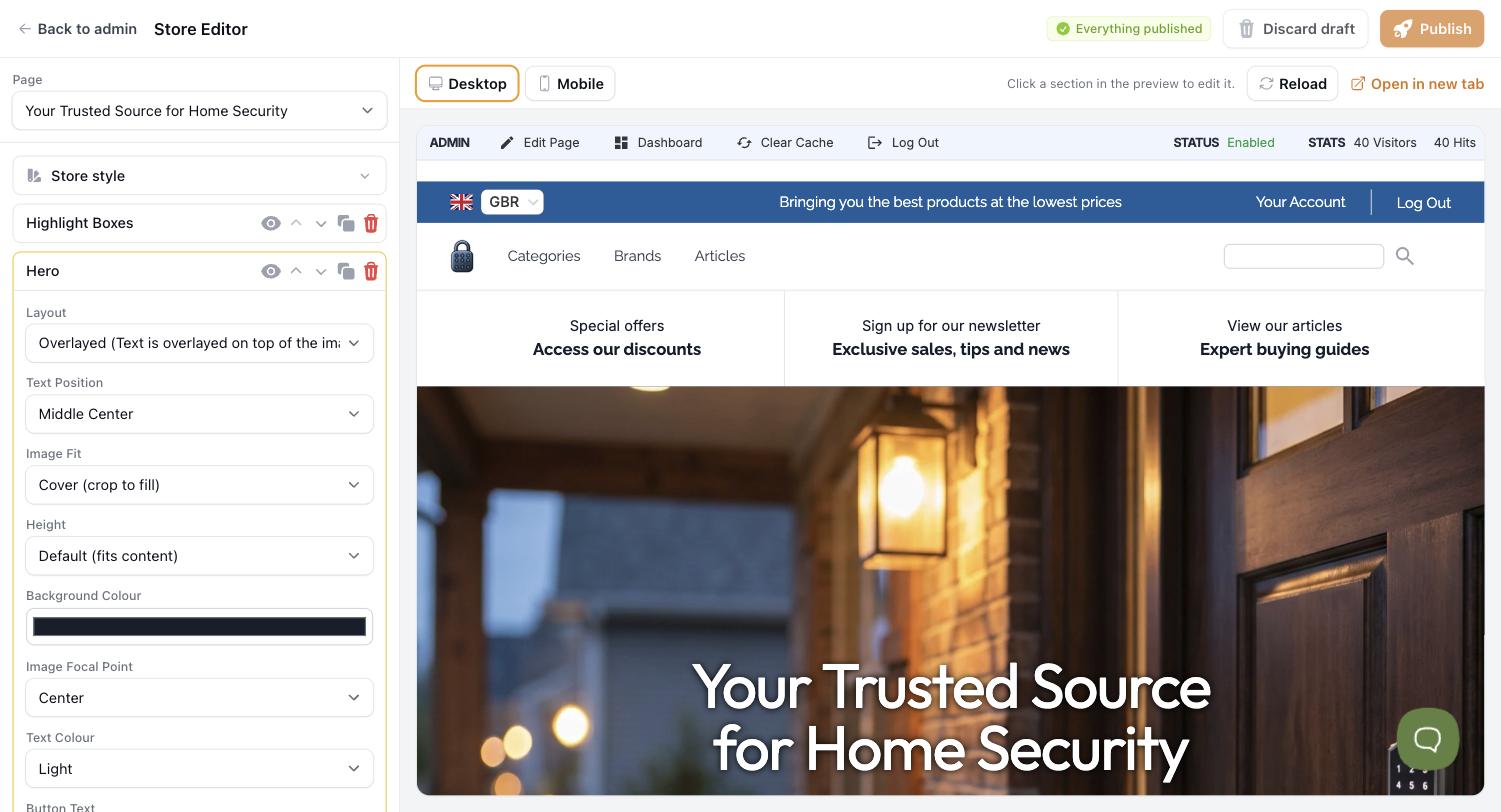
Go to Design > Editor. Your store sits on the right and the page’s sections are listed on the left. Click a section in the preview to open its settings. You can add sections, remove them, move them up or down, duplicate them or hide them, and check the result on desktop and mobile.
Nothing reaches your visitors until you press Publish. Your changes wait as a draft that only you can see, and the draft is still there after you close the browser, so you can build a page over a few sittings.
The hero, highlight boxes, offer box, testimonials, homepage text and your featured products, categories and articles are all sections now. What you had set on your homepage was carried into them, including every featured product, category and article you had picked, up to 12 of each. The hero image and your featured picks are now set only in the Editor. Store > Pages > Homepage keeps the page titles and SEO.
Your own colours
Design > Colour Scheme still has the ready-made schemes. You can also set five colours yourself: accent, background, text, titles and buttons. FreshStore works out the rest of the palette from those five.
Or press Generate with AI. It designs a palette to suit your store and niche and fills in the five for you to review. A palette uses a few hundred to a few thousand AI Chips, and nothing changes on your store until you save.
Fonts
Design > Typography has ten ready-made font pairings, from Classic Editorial to Geometric Tech. Pick one and your title, subtitle and body fonts update to match. Or choose each of the three yourself from 81 fonts.
Your own pages
Store > Pages now has a New Page button. Make a gift guide, a buying guide, a comparison page or a thank you page, then build its content in the Editor the same way you build your homepage.
A link chooser
Every link field in the Editor has a Choose button. It searches your own store for pages, categories, brands, articles and products. A link picked this way follows its target, so renaming a category later does not break it.
Custom CSS
Design > Custom CSS takes your own CSS, for the small adjustments no setting covers.
What comes next
Everything above runs on a new engine, and stage one uses it to open up Crystal. Stage two is fully distinct templates, each with its own look, built on the same engine. Now the engine exists, that is what we are building next.
First-week questions
These are the questions we have been asked most since the move, with the answer for each.
I changed something in the Editor and my store still shows the old version
Your changes wait as a draft until you press Publish. The Editor shows an Unpublished changes badge while a draft exists. Press Publish and the change reaches your visitors. Everything in the draft publishes together, so check the preview first.
My hero image is cut off on phones
A phone shows about a third of a wide banner’s width, so words painted into the image lose both ends. Three fixes, best first. Put the words in the hero’s Title and Subtitle fields instead of in the image. Or upload a square version in Mobile Hero Image, under Hero Image, and phones show that instead. Or set Image Fit to Contain, which shows the whole banner with space above and below. Then Publish.
Where do I put an embed code or a script?
For one page, add a Custom HTML section to that page in the Editor. It has an HTML box, a CSS box for that section only, and a Keep to page width switch. The code runs exactly as written, so video embeds, forms and widgets work. Code that every page needs goes in Text > Global Text > Custom HTML. Tags that belong in the page head, such as a site verification tag, go in Settings > Store > Header Scripts & Meta Tags.
How do I add a page?
Store > Pages > New Page. Give it a title, then open it in the Editor and add sections the way you build the homepage. The guide is creating a custom page.
Where is Custom CSS?
Design > Custom CSS, on every store. Before you write CSS, check for a setting. Design > Colour Scheme sets five colours, and switching on Use custom colours opens an Advanced section with more pickers, including Link Colour.
Can I hide one Highlight Box?
Yes. Each of the three boxes has a Show this box? switch in the Editor. Switch off the one you do not want and Publish. Removing the whole section hides all three.
Can I move the hero button?
The button travels with the hero text. Text Position moves the title, subtitle and button together, with nine positions from top left to bottom right. Layout changes the shape of the hero itself.
What size should my images be?
Every upload field says so underneath it. Homepage hero 2400 x 1200. Category image 1200 x 1200 with the subject in the middle. Article hero 1600 x 800. Logo 512 x 128 as a transparent PNG or SVG.
How many categories can the homepage show?
It depends on the section. Featured Categories has a Quantity box, up to 24. Category Links shows every category you pick, and 12 top-level categories while none are picked.
I cannot find Design
Design is in the store admin, not the account area. From my.freshstore.com, click Design on the store’s card and it opens the Editor, signed in.
Where to start
Open your store admin and go to Design > Themes to try a look, or Design > Editor to change your homepage. These guides cover each part:
- What changed on your store: https://guides.freshstore.com/article/772-your-store-is-now-on-the-new-design-what-changed
- Themes: https://guides.freshstore.com/article/767-themes—feature-guide
- The Store Editor: https://guides.freshstore.com/article/768-store-editor—feature-guide
- Creating a custom page: https://guides.freshstore.com/article/769-how-to-create-a-custom-page-for-your-store
- Typography: https://guides.freshstore.com/article/770-typography—feature-guide