

22 Roadmap Requests Are Now Live in Your Store
Every change in this post started as a request on the FreshStore roadmap. A member posted it, other members voted for it, and it is now live in every store. Thank you to everyone who posted and voted.
The bigger storefront changes, such as the sticky header and the Buy Now button, stay off until you switch them on. Each item says where to find it.
The short version
- A sticky header, a back to top button, and a Tall logo size for stacked logos.
- Hide a category from your menu while it stays live.
- Choose what your homepage shows: the homepage you build, your categories page, or one article.
- A Buy Now button beside Add to Cart, and a product feed for Google Merchant Center and Facebook.
- Reply to store messages from your admin, and import articles from Markdown or HTML files.
Store design and navigation
Sticky header (#68). Design > Design Options > Header > Sticky Header keeps your logo and menu on screen while visitors scroll. The thin strip above them scrolls away as normal. It does not apply with the Extra Large or Tall logo sizes.
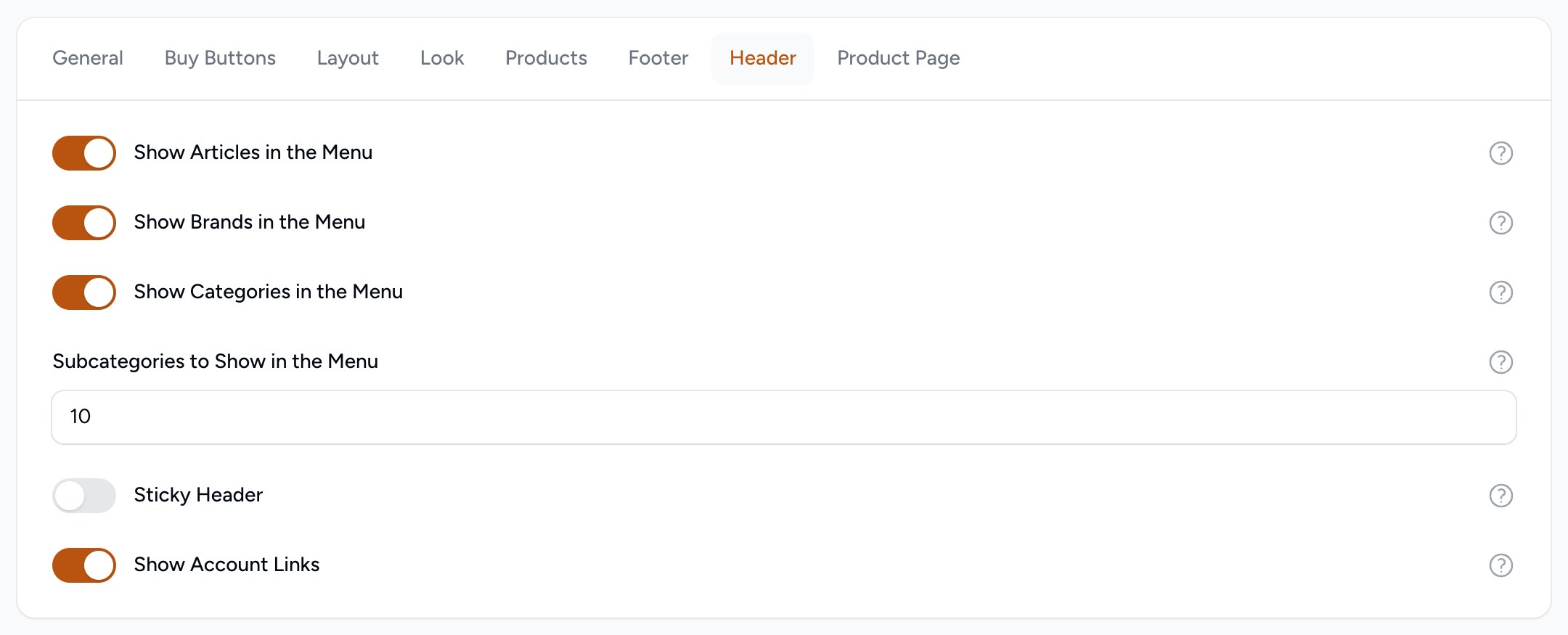
Tall logo size (#38). If your logo is stacked or vertical, go to Design > Logo > Logo Size (Header) and choose Tall (stacked or vertical logos). It works with uploaded image logos.
Centred header bar text (#50). The text in the header bar now stays centred whether your account links are on or off. There is nothing to set.
Hide a category (#158). Open the category and switch off Show in Menu in its Settings panel. A subcategory also has Show on Parent Page. The category keeps its own page and stays in your sitemap.
Back to top button (#115). Switch on Design > Design Options > General > Show Back to Top Button. A button appears in the bottom right corner once a visitor has scrolled down the page.
A 404 page with your menu (#51). Your page not found screen now shows your header and menu, so a visitor on a dead link can keep browsing.
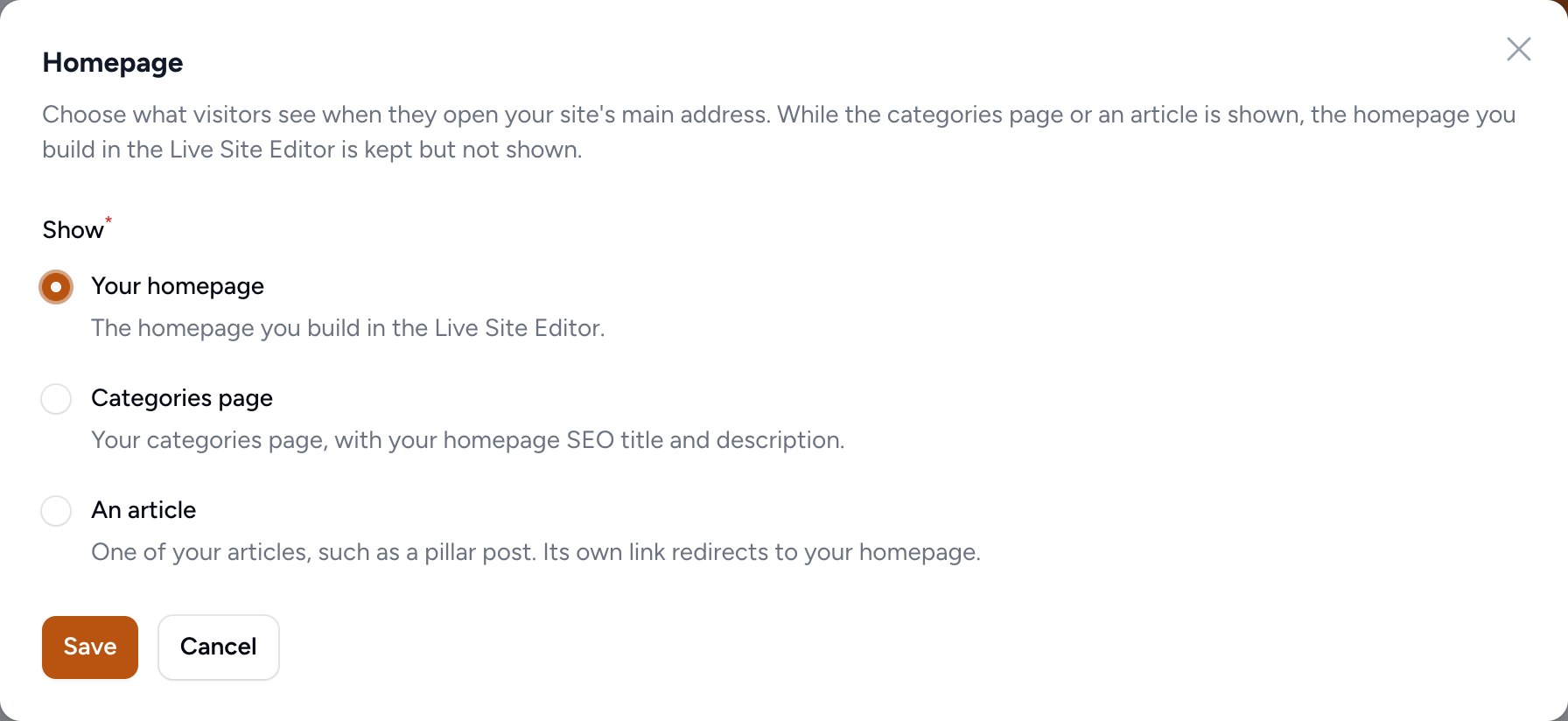
Choose your homepage (#42, #208). Store > Pages has a new Homepage button. Pick Your homepage (the one you build in the Live Site Editor), Categories page, or An article such as a pillar post. If that article is later disabled or deleted, your built homepage shows instead.
Offer Box dates (#234). In Design > Editor, select the Offer Box and set Show from and Show until. The box shows only between those dates, which suits a seasonal sale.
Shuffle on each visit (#227, #99). The Featured Products, Featured Categories, Featured Articles and Products sections in Design > Editor have a Shuffle on each visit option. Each page load shows a different selection, and the section keeps its size.
Tumblr and Discord links (#39). Traffic > Social Links now has fields for Tumblr and a Discord Server.
WhatsApp link (#181). A new Other Links section on the same page takes a wa.me link, a group invite, a channel or a phone number. It shows with your other icons in the footer.
Your own custom link (#147). Other Links also has a Custom Link and a Custom Link Label, for a blog or any other site you want in your footer.
Products and cart
Buy Now button (#198). Switch on Settings > Store > Front End > Show Buy Now Button. Product pages then show Buy Now beside Add to Cart, which sends the visitor straight to the retailer as a tracked affiliate click. It needs Shopping Cart Enabled. To change the wording, edit PRODUCT_DETAIL_BUY_NOW_TEXT in Store Text, in the Offers group.
Cart quantities that match the checkout (#236). eBay, custom links and Amazon product page links cannot pass a quantity to the retailer. For those, the cart now holds the quantity at 1, so a visitor who wanted three is not sent to buy one. Amazon add to cart lines keep the quantity picker.
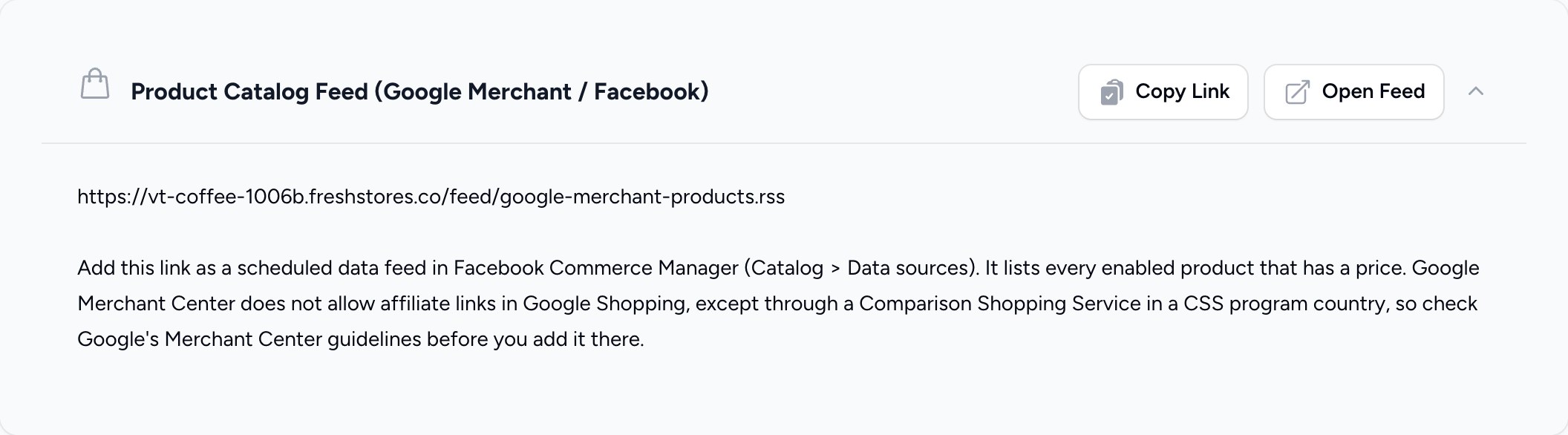
Product catalog feed (#171). Traffic > RSS Feeds has a Product Catalog Feed (Google Merchant / Facebook) panel with a Copy Link button. Add that link as a scheduled feed in Google Merchant Center, or in Meta Commerce Manager under Catalog > Data sources. It lists every enabled product that has a price.
Filter products by merchant (#84). The Products list has a Merchant filter and a Merchants column.
Articles and content
Table of contents (#90). Switch on Settings > Articles > Author & Meta Settings > Show Table of Contents. Any article with three or more H2 headings gets a Contents box at the top that links to each section.
Videos that fit phones (#194). YouTube and Vimeo videos in your articles now resize to fit, so they no longer run off the edge of a phone screen.
Undo and Redo (#174). The content editor toolbar has Undo and Redo buttons. They work everywhere you use the editor: articles, products, categories, brands and offers.
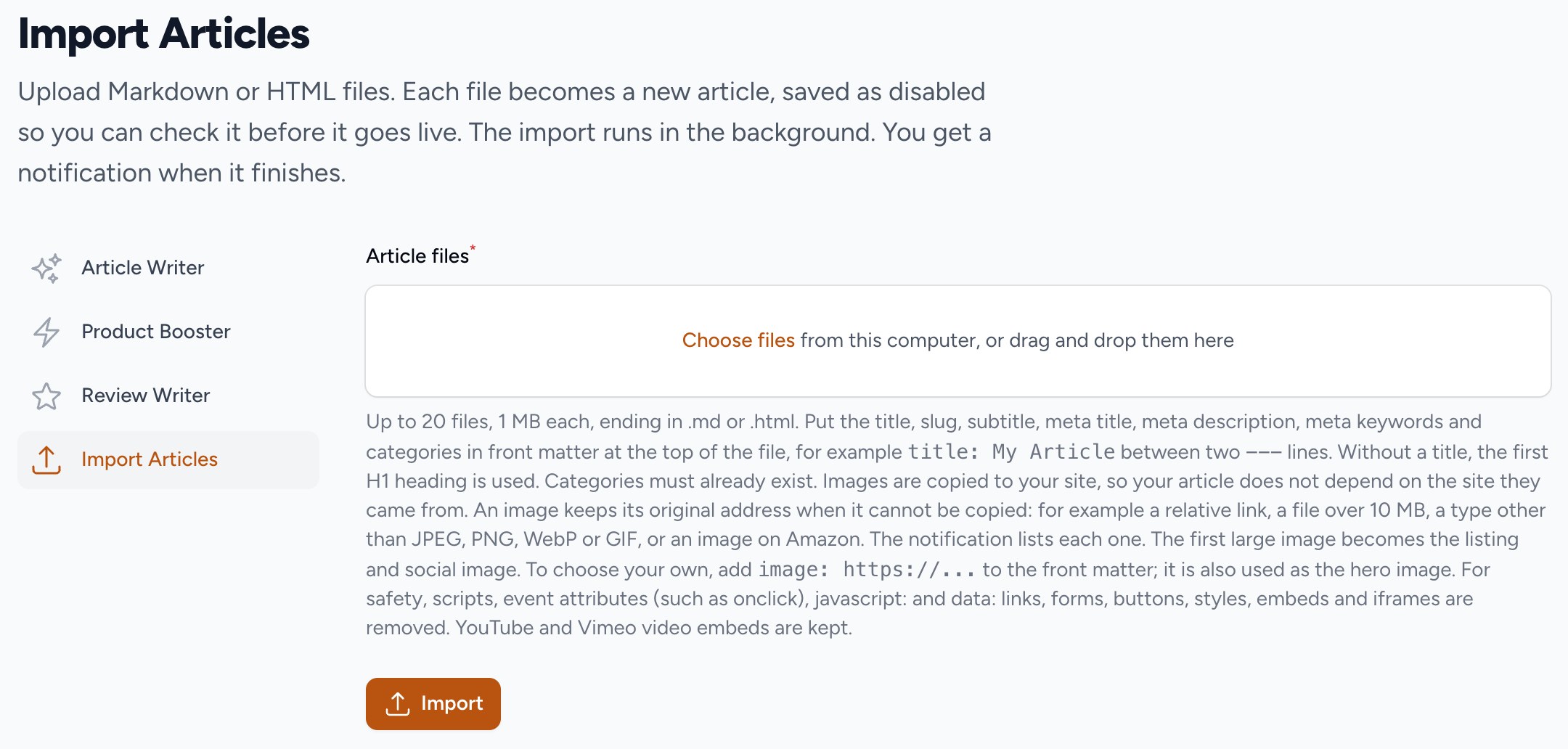
Import articles from files (#143). Articles > Write with AI > Import Articles takes up to 20 .md or .html files at a time, up to 1 MB each. Each file becomes a draft article that stays disabled until you enable it. Front matter at the top of a file can fill the title, slug, meta fields, author and categories. The guide shows the format: https://guides.freshstore.com/article/778-how-to-import-articles-from-markdown-or-html-files
Admin and messages
Reply to messages (#31). In Users > Messages, each message has a Reply button. It opens a reply in your own email app, with the visitor’s address and a subject filled in, so you answer from your own mailbox and they can reply straight back to you.
Unread messages (#49). The Messages menu shows how many messages are unread. Opening a message marks it read, and the Mark as Read bulk action clears several at once.
We went through the whole roadmap
We also reviewed every open request on the roadmap board today. 16 older requests were already live, so we closed them. Where two posts asked for the same thing, we merged them so the votes count together.
On the rest, we asked follow-up questions to understand what you need. If you posted a request, check it for a question from us. Your answer helps us build the right thing.
Vote for the requests you want next, or add a new one: https://roadmap.freshstore.com
Guides
These guides now cover the new settings:
- Store Menu and Navigation: https://guides.freshstore.com/article/736-store-menu-navigation-feature-guide
- Design: https://guides.freshstore.com/article/640-design-feature-guide
- How to change your store logo: https://guides.freshstore.com/article/551-how-to-change-your-store-logo
- Categories: https://guides.freshstore.com/article/552-categories-feature-guide
- How to customize your homepage: https://guides.freshstore.com/article/553-how-to-customize-your-homepage
- Store Editor: https://guides.freshstore.com/article/768-store-editor—feature-guide
- Featured products: https://guides.freshstore.com/article/701-how-to-change-the-featured-products-on-your-homepage
- Social Links: https://guides.freshstore.com/article/634-social-links-feature-guide
- Full Shopping Cart: https://guides.freshstore.com/article/624-full-shopping-cart-feature-guide
- RSS Feeds: https://guides.freshstore.com/article/494-rss-feeds-feature-guide
- Products: https://guides.freshstore.com/article/636-products-feature-guide
- Articles: https://guides.freshstore.com/article/554-articles-feature-guide
- How to add videos to your store: https://guides.freshstore.com/article/707-how-to-add-videos-to-your-store
- Content Editor: https://guides.freshstore.com/article/556-content-editor-feature-guide
- How to import articles from Markdown or HTML files: https://guides.freshstore.com/article/778-how-to-import-articles-from-markdown-or-html-files
- Messages: https://guides.freshstore.com/article/639-messages-feature-guide