
A Simpler Store Page
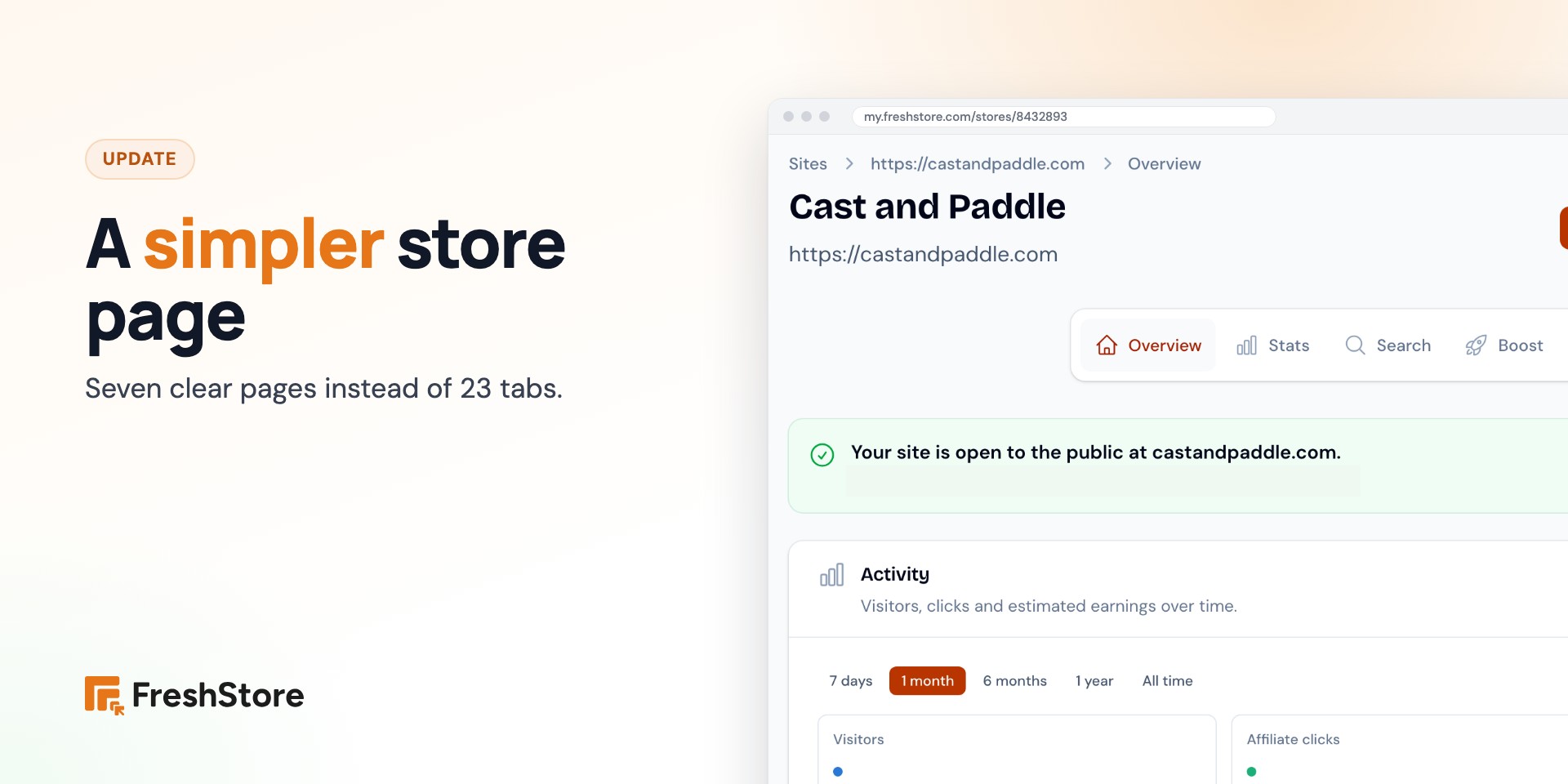
When you open a store in your FreshStore account, you now get a handful of clear pages instead of a wall of tabs. The old store page had 23 tabs, some of them three levels deep, and members told us they could not find things. This is the rebuild.

The pages
Across the top of every store you now see:
- Overview: how your store is doing, and what to do next.
- Launch plan: your setup steps, while your store is still launching.
- Stats: visitors, clicks, estimated earnings, and where your visitors come from.
- Search: Google and Bing, with where each one stands at the top.
- Boost: a store review, and your own domain if you are still on a FreshStore address.
- Domain: your web address.
- Settings: everything about how your store works.
On a phone, the pages are one dropdown under the store name.
Overview tells you where you stand
The first line says, in plain words, whether your store is open to the public, how many visitors and clicks it had in the last 30 days, and its estimated earnings.
Under it, Site health lists what your store needs and what is optional: open to the public, web address working, your Amazon ID, Google and Bing, and any warnings. Each one links to the fix. On a new store, an unconnected Google or Bing shows as “Not yet, that is normal”, because it is.
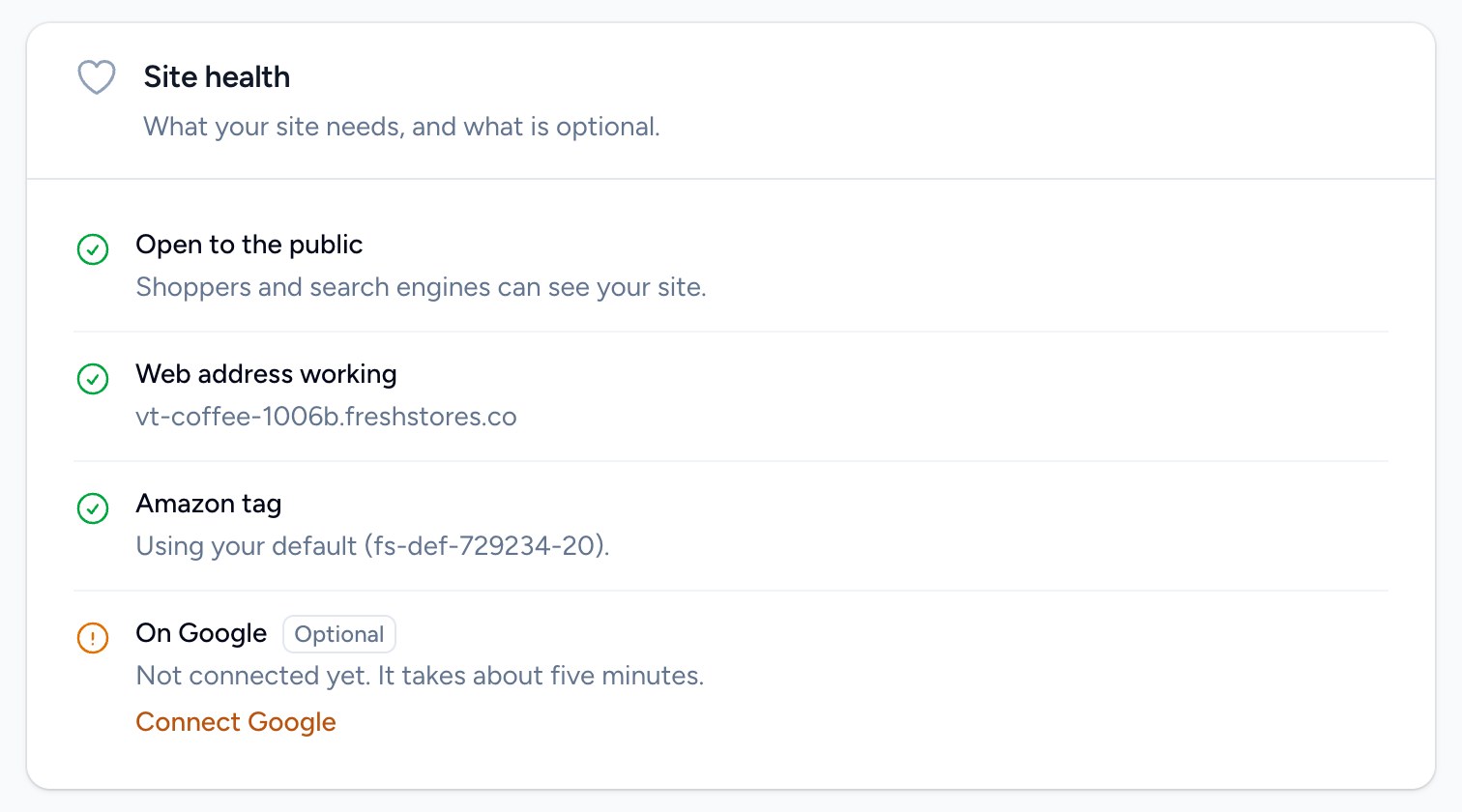
New stores also get a short note on what to expect. Google usually lists a store’s first pages a few weeks after it is connected, so a quiet first month is normal.
You can also paste up to 25 Amazon product links or ASINs into Import Amazon links, and your store adds them. No need to open the store admin for that.
One way into your store admin
Your store admin is where you add products, write articles and change the design. The page now has one button for it, Open site admin, and a Go straight to menu beside it: Change design, Add products, Edit products, Write articles, Edit articles, Pages, Categories, Images and Site admin settings.
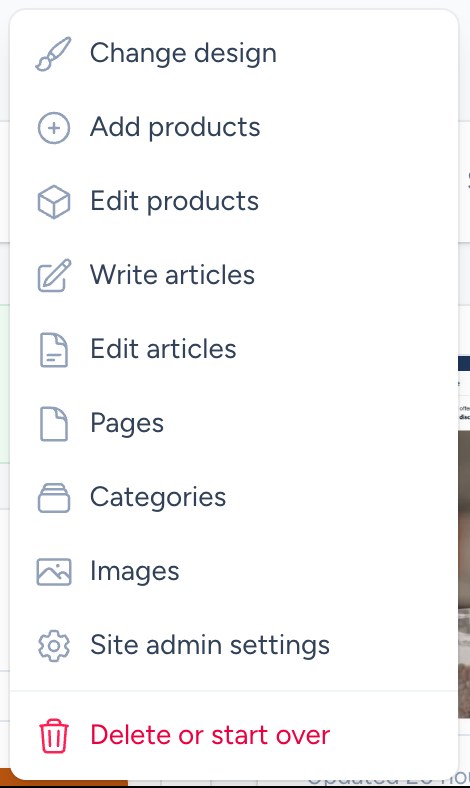
Inside the store admin, Back to FreshStore account in the menu takes you back to the same store’s page.
Settings on one page
All of a store’s settings are now on one page, as plain rows instead of pop-up windows. There is a search box at the top: type “cart”, “robots” or “Amazon” and only the matching settings stay on screen. Press / to jump to it.

Each section has its own Save button. For your affiliate IDs, each one says whether the store uses your account ID or has its own, which matters if you run stores for other people.
If you have more than one store, most settings have an Apply to other stores link. Recent changes, at the bottom, shows what changed on the store in the last 90 days and who changed it.
For people with lots of stores
- The switch button next to the store name takes you to another store and keeps you on the same page, so you can check Search on one store, then the next.
- The search in the top bar (Cmd K or Ctrl K) finds a store by its name, address or tag, and jumps straight to its Overview, Settings or store admin.
To change many stores at once, see the Managing Many Stores guide: https://guides.freshstore.com/article/781-managing-many-stores-at-once
Your old links still work
Bookmarks and links to the old tabs open the right page.
The full walkthrough is in the guide: https://guides.freshstore.com/article/782-your-store-page-feature-guide If something is harder to find than it used to be, reply in support or add it to the roadmap at https://roadmap.freshstore.com and we will fix it.