

Your Store’s Hero Can Now Play a Video
The big banner at the top of your homepage has always been a still picture. Plenty of you asked for video instead, on the roadmap and in support tickets. Until now the only way was to paste embed code into a Custom HTML section.
Now your hero can play a video, and you set it up in a few clicks in the Store Editor.
See it live on Houseplant Crew, a store on the Vista template: https://houseplantcrew.com/
The short version
- Your hero can show a video, as a silent background loop or as a video visitors click to play.
- Upload your own, paste a link to a video you host anywhere, or pick a free stock clip.
- A new Video Section puts a video on any page, and above or below the content on category, brand and article pages.
- New hero options for images too: which side the picture sits, a frame around it, and an overlay to keep your text readable.
- Your store keeps loading fast. Visitors see a still picture first, and the video starts after the page has loaded.
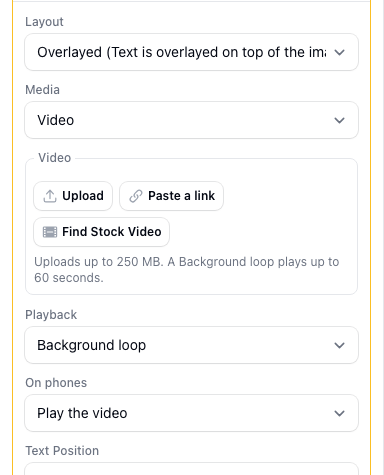
Three ways to add a video
Open Design > Editor, click your hero, and set Media to Video. Then pick one:
Upload. Choose a file from your computer. While it is being prepared you can publish straight away: your store shows the hero picture and switches to the video once it is ready.
Paste a link. Paste the address of a video you host yourself, and the editor works out where it lives. A link to an .mp4 or .webm file works, and so do Vimeo, Wistia, YouTube, Loom, TikTok, Dailymotion and Streamable. Videos you host yourself are free and unlimited. Dropbox and Google Drive links work too: we copy the video to your store, because both services block other sites from playing their videos.
Find Stock Video. Search free stock clips from Pexels right inside the editor. Hover to preview, click to use. There are clips for most niches, from coffee and kitchens to beaches and running.
Background loop or click to play
Background loop plays the video silently, over and over, behind or beside your headline. It is the look you see on big brand sites, and it suits niches where movement sells: fitness, travel, food, outdoor gear. Visitors get a pause button.
Click to play shows a picture with a play button. A click plays the video with sound. Use it for a product demo, a review or a walkthrough. YouTube and the other platforms work this way, and nothing loads from them until somebody clicks, so your page stays quick.

The Video Section
Want a video further down the page? Add a Video Section from the Store Editor’s add menu. It goes on your homepage, on any page you have made, and above or below the content on your category, brand and article pages. Give it a heading, pick a shape (wide, square, or tall for phone videos), and choose a frame.
New hero options, for images too
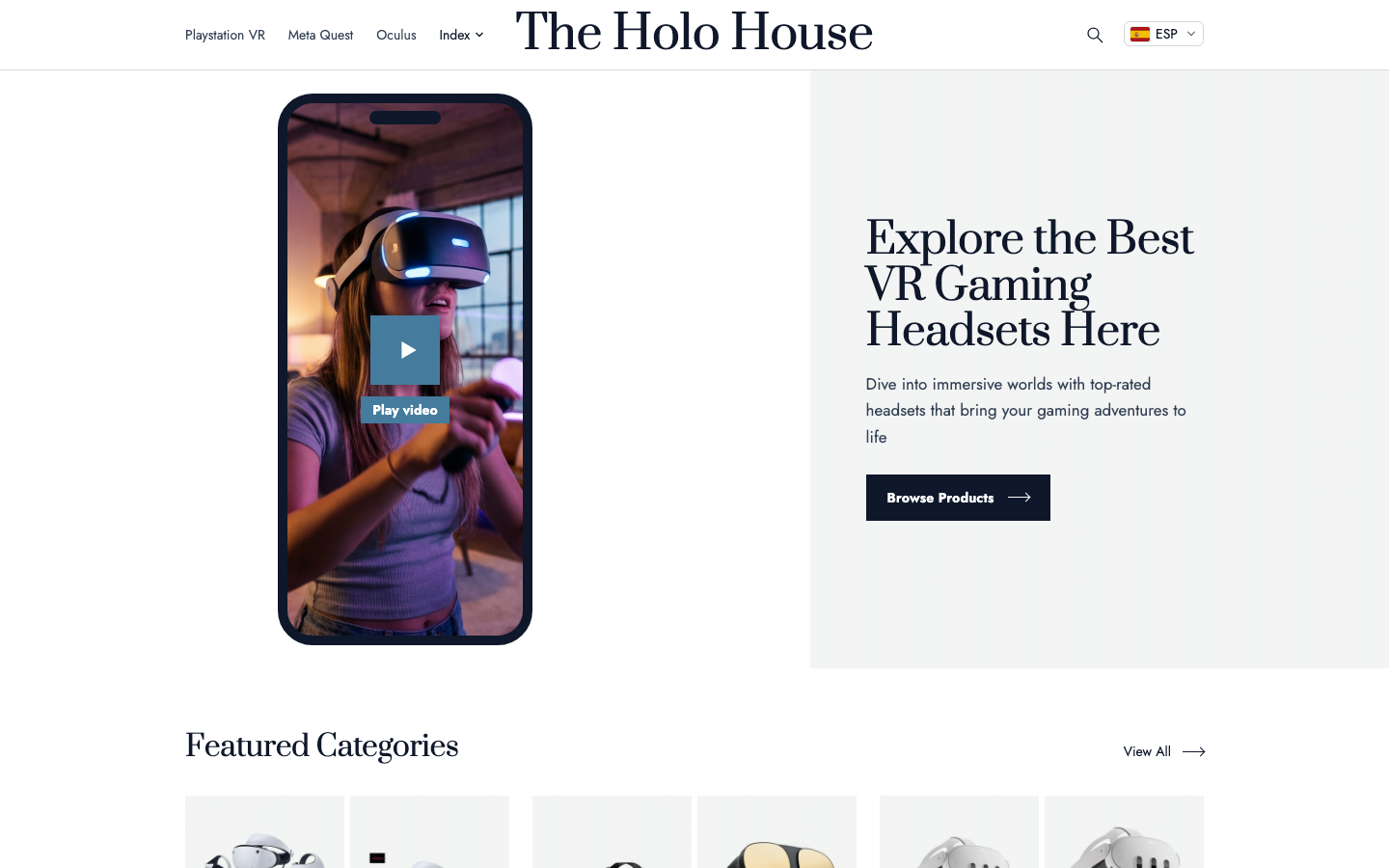
- Media side: put the picture or video on the left or the right.
- Frame: none, circle, arch, phone or laptop. The phone and laptop frames are drawn in your store’s own colours.
- Overlay: light, medium or dark, so white text stays readable over a busy picture.
- On phones: play the video, or show the still picture to save your visitors’ data.
Built to stay fast
Your hero picture still loads first, exactly as before. The video starts only once the page has finished loading, and it never moves anything on the page.
Some visitors keep seeing the picture: phones set to save data or reduce motion, iPhones in Low Power Mode, and phones where you chose to show the picture. So pick a hero picture that works on its own.
How much video you get
Every store gets 5 GB of video bandwidth a month, and 10 GB if you are an Accelerator member. That covers uploads, Dropbox and Google Drive copies, and stock clips. Short loops use much less than long ones, so a 15 second clip goes a long way.
Videos you host yourself and link to never count, so there is no limit on those.
The editor shows your usage once you pass half. If you reach your limit, you can add more.
New Instant Stores
A new Instant Store built from scratch on the Crystal or Vista template now looks for a stock video that fits its niche, and opens with it in the hero when one fits. If nothing fits, it keeps the photo as before. The video can take around 20 minutes to appear after the store is created. A store copied from another store keeps that store’s hero.
Where to start
Open your store admin, go to Design > Editor, click your hero and set Media to Video.
Step by step: How to add a video to your homepage https://guides.freshstore.com/article/790-how-to-add-a-video-to-your-homepage
Every option, plus video in articles and products: How to add videos to your store https://guides.freshstore.com/article/707-how-to-add-videos-to-your-store
Thank you to everyone who asked for this, on the roadmap and in support. Show us what you make with it.